Always
Key takeaways
- Certified Android TV / Google TV devices get regular updates and full Google Play access.
- For 4K, look for a 4K-capable box with at least 2 GB of RAM and Ethernet or Wi-Fi 5/6.
- Install your IPTV player straight from Google Play where possible.
- Hardware decoding and a wired connection solve most playback issues.
Why Use an Android TV Box?
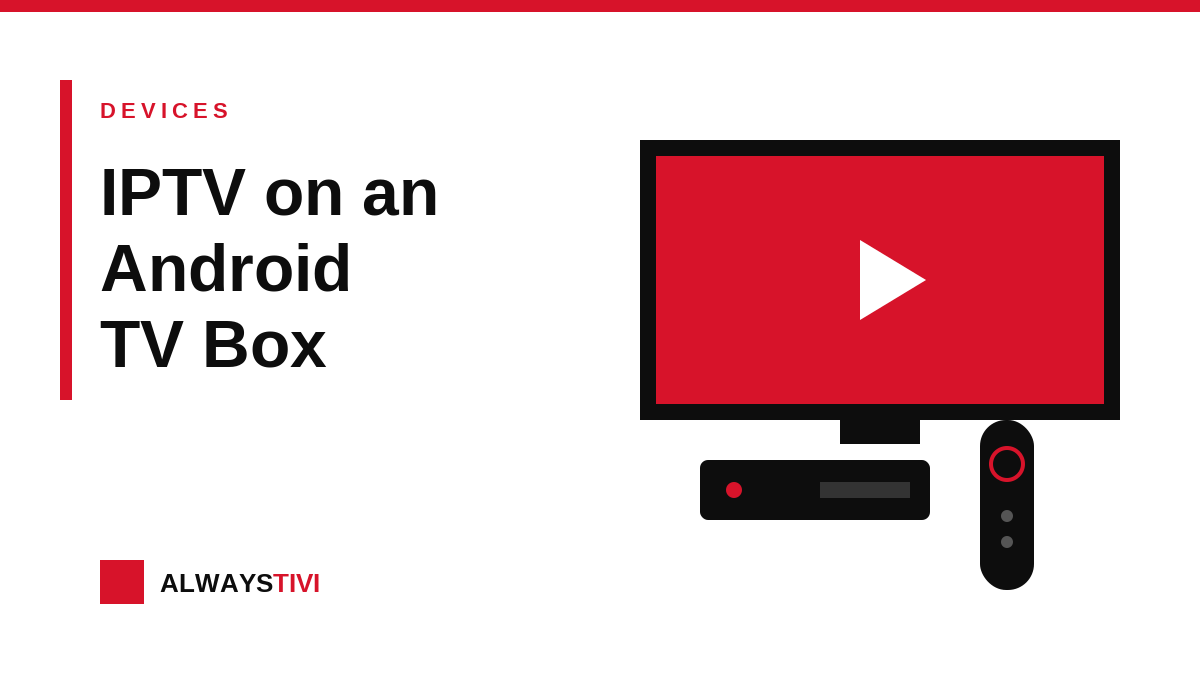
An Android TV box plugs into your television's HDMI port and turns any screen into a capable streaming device. For IPTV, it brings three big advantages: access to the large Google Play app catalogue, enough processing power for high-bitrate streams, and a familiar remote-friendly interface. It's also a practical upgrade for older Smart TVs whose built-in apps have stopped receiving updates.
What to Look for in a Box
| Feature | Why it matters | What to aim for |
|---|---|---|
| Certified Android TV / Google TV | Official Google Play access and security updates | Certified device from a known brand |
| 4K & HDR support | Needed to output 4K streams | 4K at 60 Hz, HDR10 (Dolby Vision is a bonus) |
| Memory (RAM) | Affects app speed and stability | 2 GB minimum; 3–4 GB preferred |
| Storage | Space for apps and cache | 8 GB minimum; 16 GB+ is comfortable |
| Networking | Stable streams depend on it | Ethernet port and Wi-Fi 5 or Wi-Fi 6 |
Be cautious with very cheap uncertified boxes. They may run outdated software, lack Google Play or receive no security updates, which can cause app problems later.
Setting Up the Box
- Connect the box to your TV's HDMI port and plug in the power supply.
- If possible, connect an Ethernet cable to your router; otherwise choose your 5 GHz Wi-Fi network during setup.
- Sign in with a Google account so you can use the Play Store.
- Go to Settings → System → About → System update and install any available updates.
- Check Settings → Display to make sure the resolution matches your TV (for example 4K at 60 Hz on a 4K set).
Installing an IPTV Player
Open the Google Play Store and search for an IPTV player. Popular choices on Android TV include TiviMate, which is built around live TV and the programme guide, and Smarters-style players that offer separate sections for live TV, movies and series. Some features may require a paid upgrade from the app's developer.
- Install the player and open it.
- Choose Xtream Codes and enter the server, username and password from your Always Tivi login — or choose M3U and paste the playlist link.
- Allow the app to load channels and EPG data.
- Mark favourites and arrange categories to suit you.
New to Always Tivi? Our full setup guide covers ordering and every step from start to finish.
Settings for Smooth Playback
- Use hardware decoding. Most players let you choose a decoder; hardware decoding is usually smoother and lighter on the processor.
- Match the refresh rate. If your box or app offers "match frame rate" or "auto frame rate", enable it so sports and films look natural.
- Adjust buffer size. A slightly larger buffer can smooth out brief dips in connection speed.
- Pick the right stream version. Start with Full HD and step up to 4K once you know your connection handles it.
- Prefer Ethernet. A cable is more stable than Wi-Fi, especially for 4K and live sport.
Keeping It Running Well
- Restart occasionally — a full reboot every few days clears memory.
- Clear app cache via Settings → Apps → your player → Clear cache if it starts to feel slow.
- Uninstall unused apps to free storage and background resources.
- Keep the player updated through Google Play for fixes and improvements.
- Refresh the EPG if the guide looks out of date. Our EPG explainer shows how.
A certified box, a good player and a cable connection: that's the most reliable way to enjoy 4K IPTV on any TV.
Want a recommendation for your setup? Ask the team, or compare plans on our pricing page.