Always
Key takeaways
- Your subscription and your player app are separate: you need both.
- Pick an app that suits your device, then enter the login we send.
- The first load takes a minute or two; later loads are faster.
- Start on Full HD, then try 4K once you know your connection copes.
Before You Begin
A few minutes of preparation makes setup much smoother:
- Know your device. Find the make and model of your TV, stick or box, usually in Settings → About.
- Check your connection. Around 10 Mbps for Full HD and 25 Mbps for 4K per stream is a good guide. A cable connection to the router is ideal for TVs.
- Update your device. Install any pending system updates so apps run properly.
- Keep your phone handy. Many TV apps let you enter details from your phone, which saves typing with a remote.
Step 1: Order and Receive Your Login
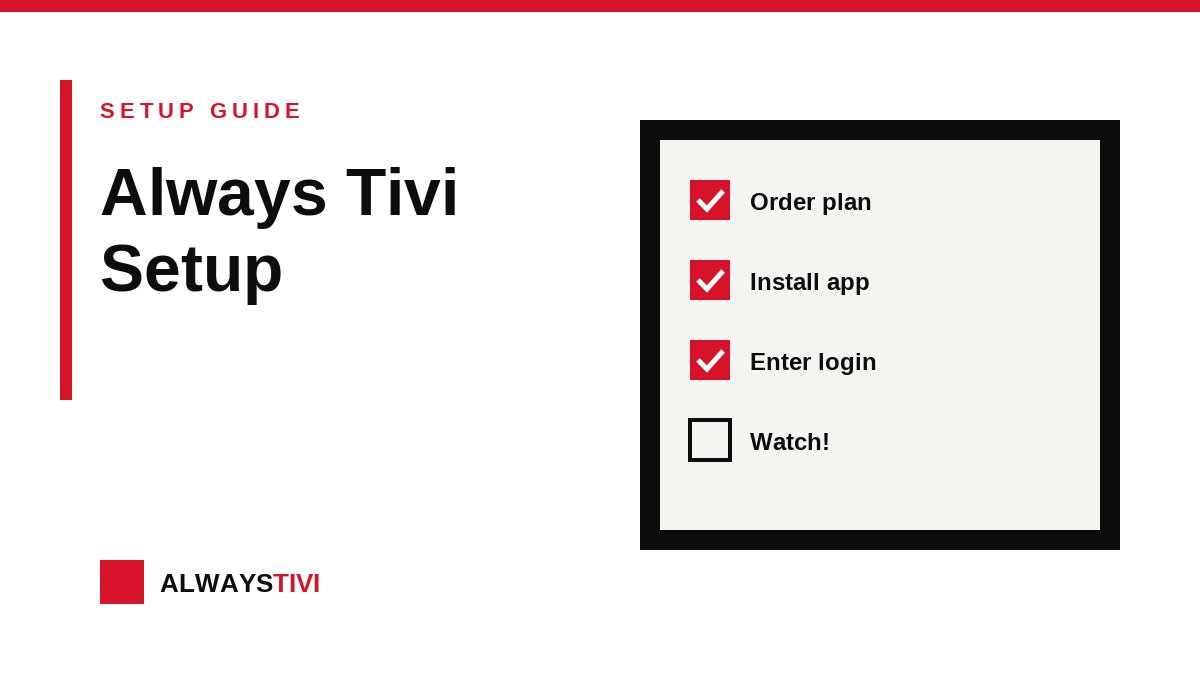
Choose a plan on our pricing page and press Buy Now. WhatsApp opens with your plan named in the message — send it, tell us your device, and we'll share the payment options available in your country. Once payment is confirmed, we send your login details along with instructions for your device.
Depending on your app, your login will usually be either an Xtream Codes login (server address, username and password) or an M3U playlist link. If your app supports both, Xtream Codes generally gives a tidier layout for films and series.
Step 2: Install a Player for Your Device
The player app is what displays your channels. Choose one available for your platform:
| Device | Where to get the app | Notes |
|---|---|---|
| Android TV / Google TV box | Google Play Store | Widest app choice, e.g. TiviMate or Smarters-style players |
| Amazon Fire TV | Amazon Appstore, or the Downloader app for players not in the store | Check the Appstore first |
| Samsung Smart TV | Samsung Apps (Smart Hub) | Many players use a device ID and website upload |
| LG Smart TV | LG Content Store | Similar to Samsung; some apps have activation fees |
| Apple TV, iPhone, iPad | App Store | Look for Xtream Codes and EPG support |
| Windows / Mac | Official websites or app stores | Desktop IPTV players or media players that accept M3U |
Some players are free; others charge a one-time or yearly fee to their developer, separate from your Always Tivi plan. Not sure which to pick? Our guide to choosing an IPTV player app explains what to look for, and Android users can follow our Android TV box guide.
Step 3: Enter Your Login
- Open the player and choose Add playlist, Add user or similar.
- Select Xtream Codes (or "Xtream API") and enter the server URL, username and password exactly as sent — or select M3U and paste the playlist link.
- Give the playlist a name, such as "Always Tivi".
- Save and wait while channels, categories and guide data load. The first load can take a minute or two.
Step 4: Your First Session
- Create favourites. Mark the channels you watch most so they're always one click away.
- Find your quality. Try a channel in Full HD, then the 4K version. If 4K is smooth, enjoy it; if it stutters, Full HD is your everyday choice.
- Check the guide. If programme information is missing, refresh the EPG in settings. Our EPG explainer covers this in detail.
- Explore the library. Open the Movies or Series section and try resuming a film after pausing it.
- Save our WhatsApp number so help is always easy to reach.
Fixing Common Setup Problems
"Invalid username or password"
Re-enter the details carefully, watching for capital letters and stray spaces. Make sure the server address is complete, including "http://" and any port number.
Channels won't load or load slowly
Restart the app and your device, then try again. On a large line-up, give the first load extra time. If it still fails, send us a screenshot.
Playback stutters
Switch to a lower quality version, connect by cable or 5 GHz Wi-Fi, and close other heavy internet activity in the house.
The app isn't available on my TV
App availability varies by TV model and country. A low-cost streaming stick or Android TV box is often the simplest solution, and gives you more app choice.
Order, install, log in, favourite. Four simple moves and Always Tivi is ready on your screen.
Need help at any step? Message us — we'll guide you through it. You can also browse the FAQ.